Planned absence enables you to view absences by statuses and approve or decline the absence request. You can also create absences for specific learners using the create an absence tab. EBS also supports configurable rules for each absence type. These rules define whether approval is required, whether evidence must be attached, and whether additional notes are needed. This enables the institution apply consistent standards to different kinds of absences. For more information, go to Absence reasons.
View absences
Use the view absences tab to see all recorded and pending planned absence requests. This page helps you search, filter, and review absence requests submitted by learners or staff. On this page, you can:
-
Find planned absences within a specific date range, for a specific learner, and so on.
-
Review the details of each absence request.
-
Complete actions such as viewing, approving, or declining a request.
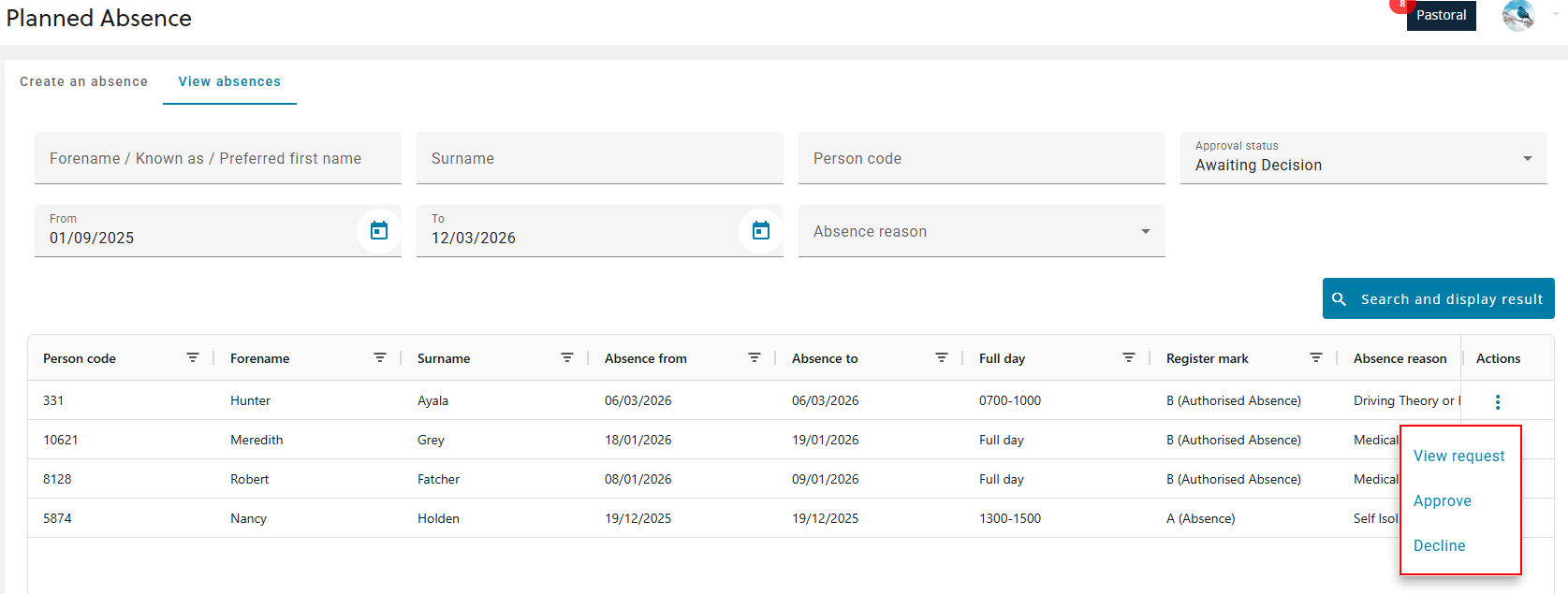
Each absence has a status, that is Approved, Declined, Awaiting decision, and Submitted. You can use the search options to find the absence requests of interest, review the request, and choose whether to approve or decline the absence. On approving an absence request, the register is updated. However, the workflow that updates registers applies only to current and future dates. If you approve an absence for a past date, the register won’t be updated.
The image below shows a search for absences that are awaiting a decision and the options to view, approve, or decline the request from the grid.
Create an absence
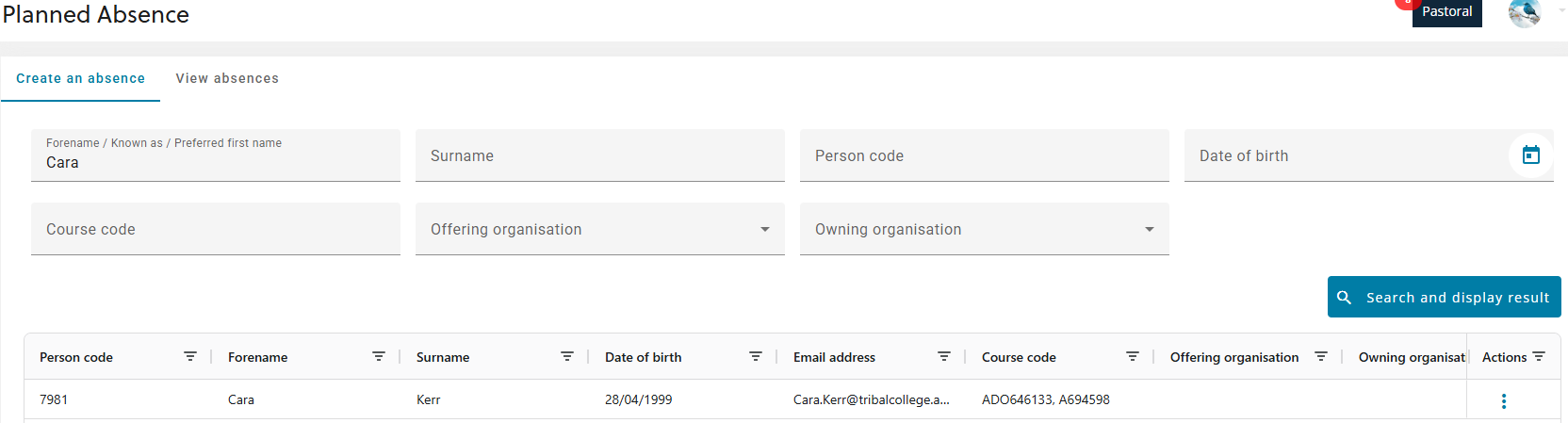
Use the create an absence tab to report a learner’s absence. You can search for learners by name, person code, and other details, then record when they were absent, why they were absent, and any supporting evidence.
You can record absences for a single day, multiple days, or part of a day. For a single-day absence, choose whether the learner missed the whole day or only part of it. If the absence covers part of a day, enter the relevant times. EBS highlights any scheduled sessions the learner was expected to attend during that period.
The absence reasons are defined in the reference data for absences, along with options for making the uploading of evidence or additional information mandatory. Any documents you upload are added to the learner’s record and appear in the documents section.
Before you submit the absence, EBS shows a summary that includes the details you entered and the learner’s current attendance levels. Review the information to make sure everything is correct. After you submit the absence, it becomes part of the learner’s attendance history. The image below shows a search for a specific learner using their forename.